Technology · PRACTICAL GUIDE
Excel dropped leading zeros from a CSV? Reimport the column as text before saving
A number format can make zeros visible without restoring the underlying identifier. Preserve the raw CSV, type the column as Text before conversion, then verify the cell and a round-trip export.
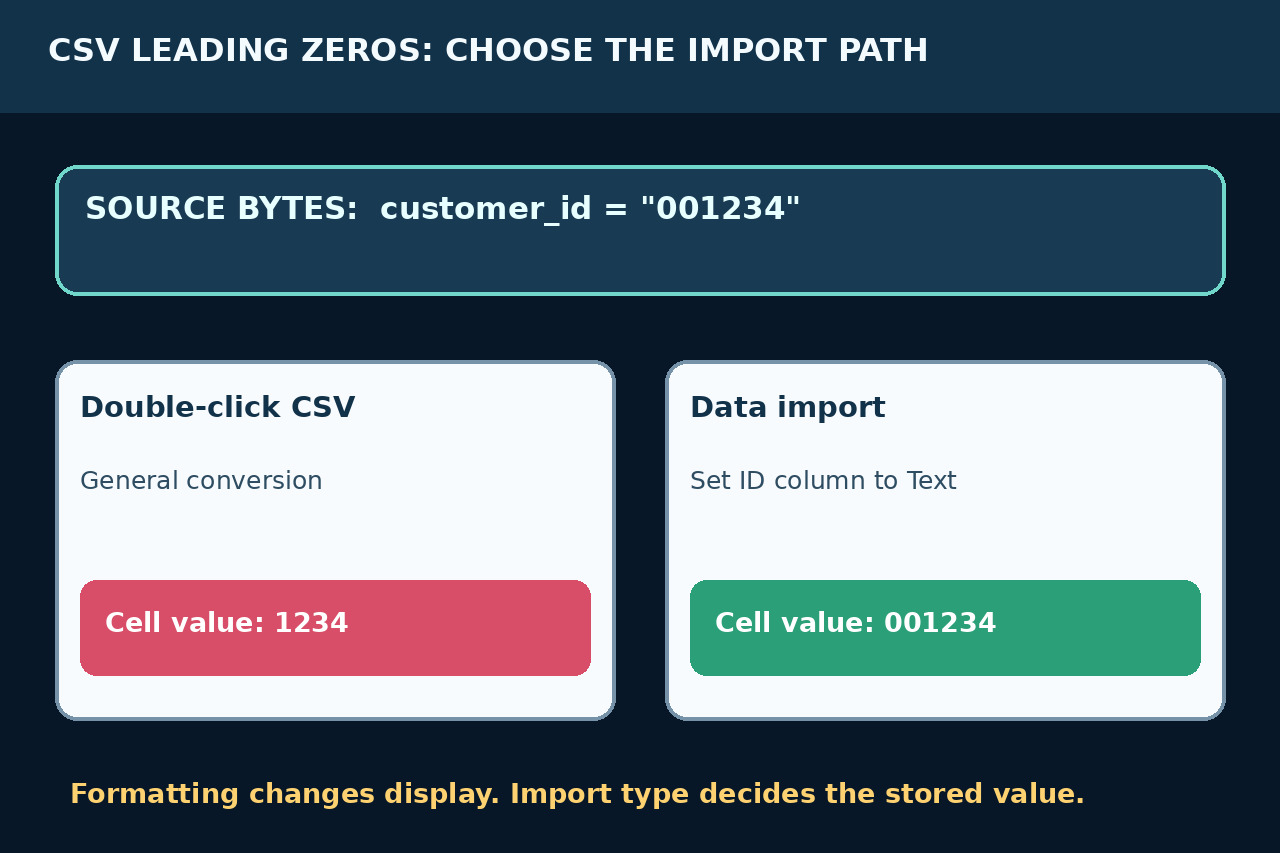
A zero-padded value such as 001234 is usually an identifier, not a quantity. CSV stores fields but does not carry an Excel column schema. When Excel opens a CSV directly, it can interpret a numeric-looking field as a number and store 1234. Changing the number format afterward may change only what you see. Start from an untouched copy and prove where the digits disappeared.
Freeze the source before testing
Make a read-only copy of the original CSV and inspect it in a plain-text editor. Confirm that the exact field still contains every leading zero and record the delimiter, quote pattern, encoding and header. If the raw file already contains 1234, Excel cannot know that 001234 was intended; recover from the producer or another authoritative source instead of guessing a width.
Do not confuse display format with stored text
Click a suspect cell and inspect the formula bar or export a one-row test. A custom format such as 000000 can display 001234 while the stored value is still the number 1234. That may look correct in the sheet yet fail in a lookup, CSV export or downstream system. Formatting is useful for presentation, not for restoring identifier bytes that were converted away.
Import through Data and assign Text before load
Use Data > From Text/CSV rather than double-clicking the file. In Power Query, review the automatically added type step and set each identifier column to Text before loading. Power Query automatically detects types for unstructured sources such as CSV, so inspect every code-like column instead of assuming quotation marks will force text.
Use the legacy wizard when that is the controlled path
If your supported workflow uses the Text Import Wizard, enable the legacy From Text option, choose the correct delimiter and select the identifier column in the preview. Set its column data format to Text before Finish. Microsoft documents Text specifically for columns made of number characters that must remain text.
Verify the value and a round trip
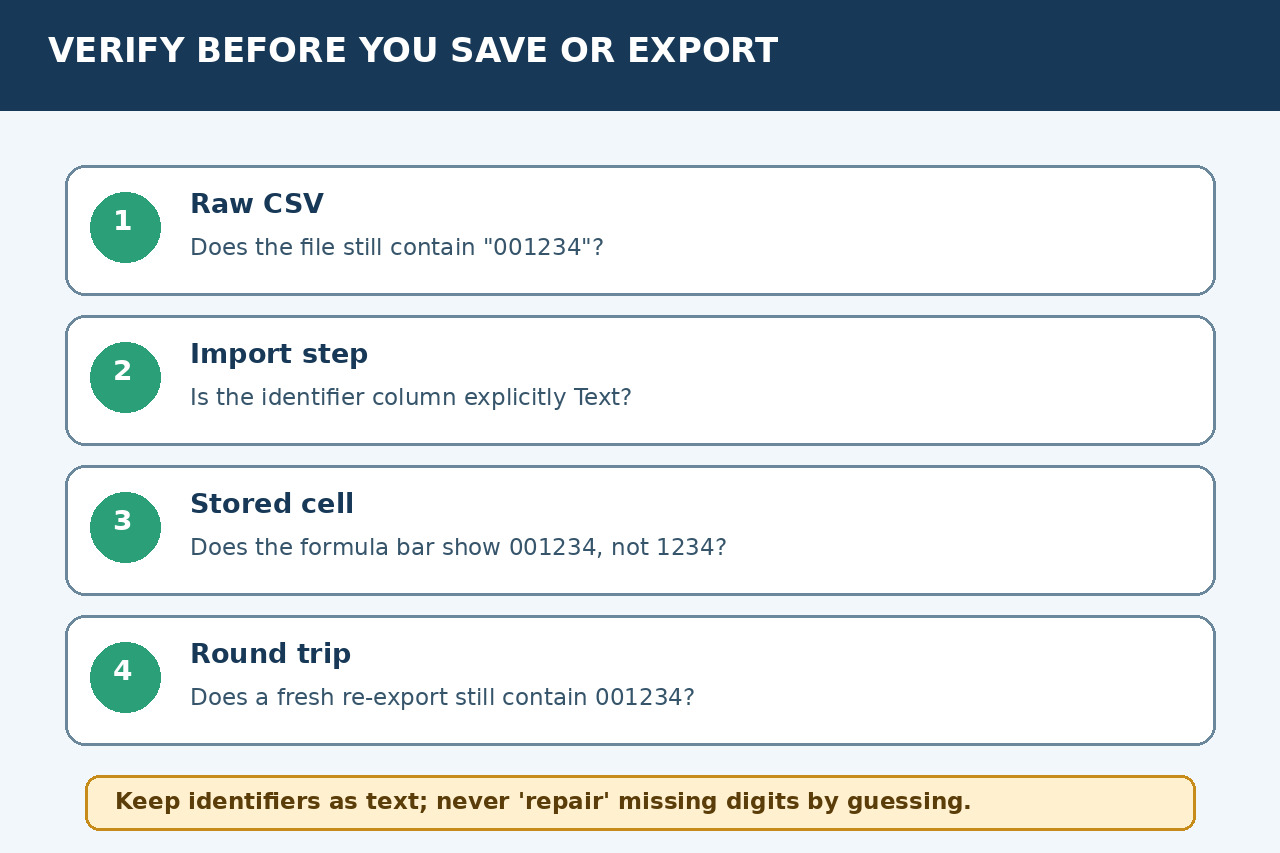
After load, check representative rows including the shortest code, an all-zero code, blanks and any values longer than 15 digits. The formula bar should show the exact original string. Save to a new workbook, export a small CSV copy, reopen that copy in a text editor—not by double-clicking Excel—and compare the identifiers byte for byte with the source sample.
Keep the repair narrow and reusable
Name the query and keep the Text conversion step so the same schema is applied on refresh. Do not prepend apostrophes or emit formula-like fields such as ="001234" into shared CSV files; those change the data and formula-shaped content can be dangerous when files are untrusted. Record which columns are identifiers, who owns the schema and how the round-trip check passed.