Culture/Entertainment · PRACTICAL GUIDE
Disney+ Offline Downloads: Laptop Limits and Mobile Requirements
Windows and Mac laptops cannot use official Disney+ downloads. Here is how to prepare a supported device, protect saved videos and recover missing or expired downloads.
No. Disney+ does not support offline downloads on Windows or Mac computers, including Windows 10/11 tablets. If you only have a laptop, you need an internet connection to watch through the official service.
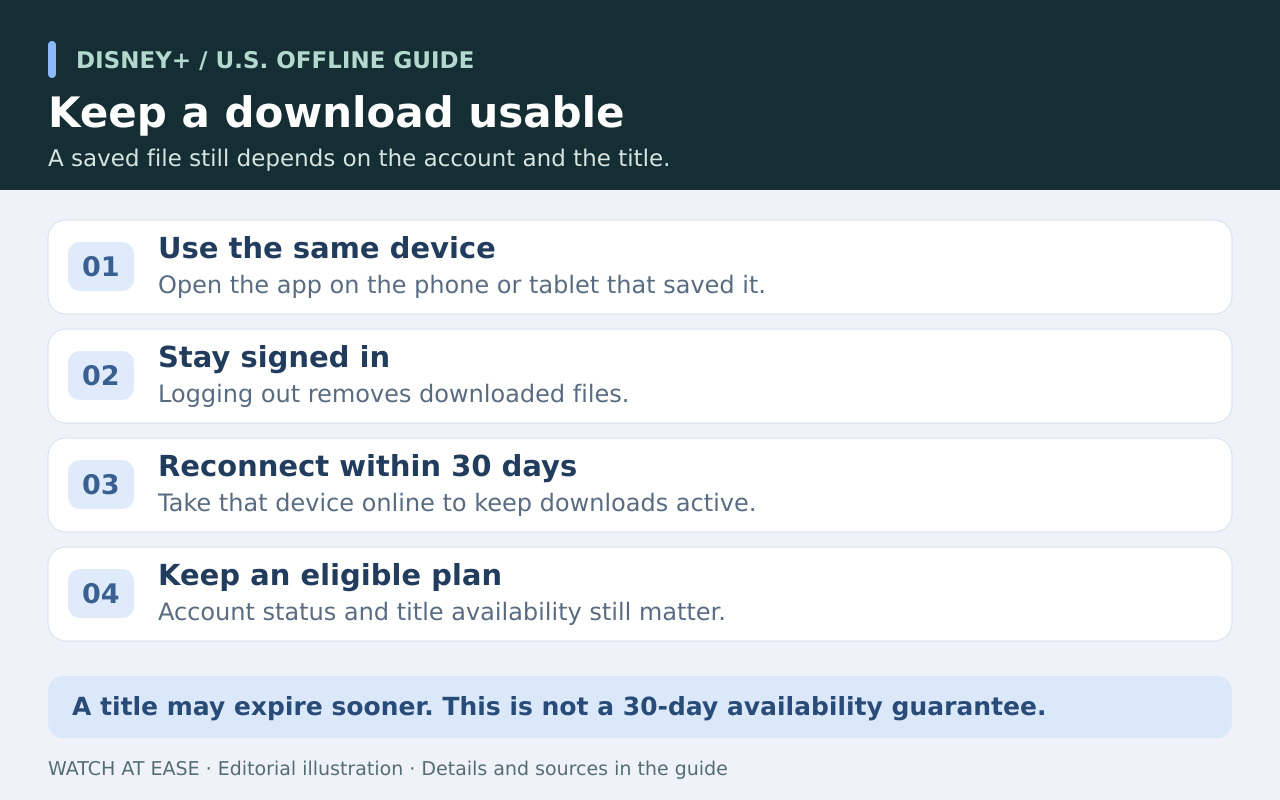
For offline viewing on a supported phone or tablet, saving the title is only the first step. Stay signed in: logging out deletes that device’s downloaded videos. The checks below separate a usable offline library from files that need an online repair.
Start with a supported screen and plan
For the phone or tablet route, use a supported iPhone, iPad, Android device or Amazon Fire tablet and a U.S. plan that includes downloads, such as Disney+ Premium or an eligible Premium bundle. Not every title is downloadable. Disney also lists certain headsets, including Apple Vision Pro and Meta Quest; this walkthrough covers phones and tablets.
An app installed on a laptop does not change the computer restriction. Use the screen you intend to take with you, open the specific movie or episode and look for its Download control before making offline plans.
Build and check the library before leaving
On reliable Wi-Fi, start the download and wait for its completion mark in Downloads. Under Profile > App Settings, review free space and Download Quality; Standard uses less storage. Set Download Over Wi-Fi Only if you want to avoid cellular transfers.
Then turn off Wi-Fi and cellular data, reopen Disney+ and play the saved episode from Downloads. Check the actual travel device, not a second signed-in device. If playback fails, reconnect while you still can and use the matching recovery branch below.
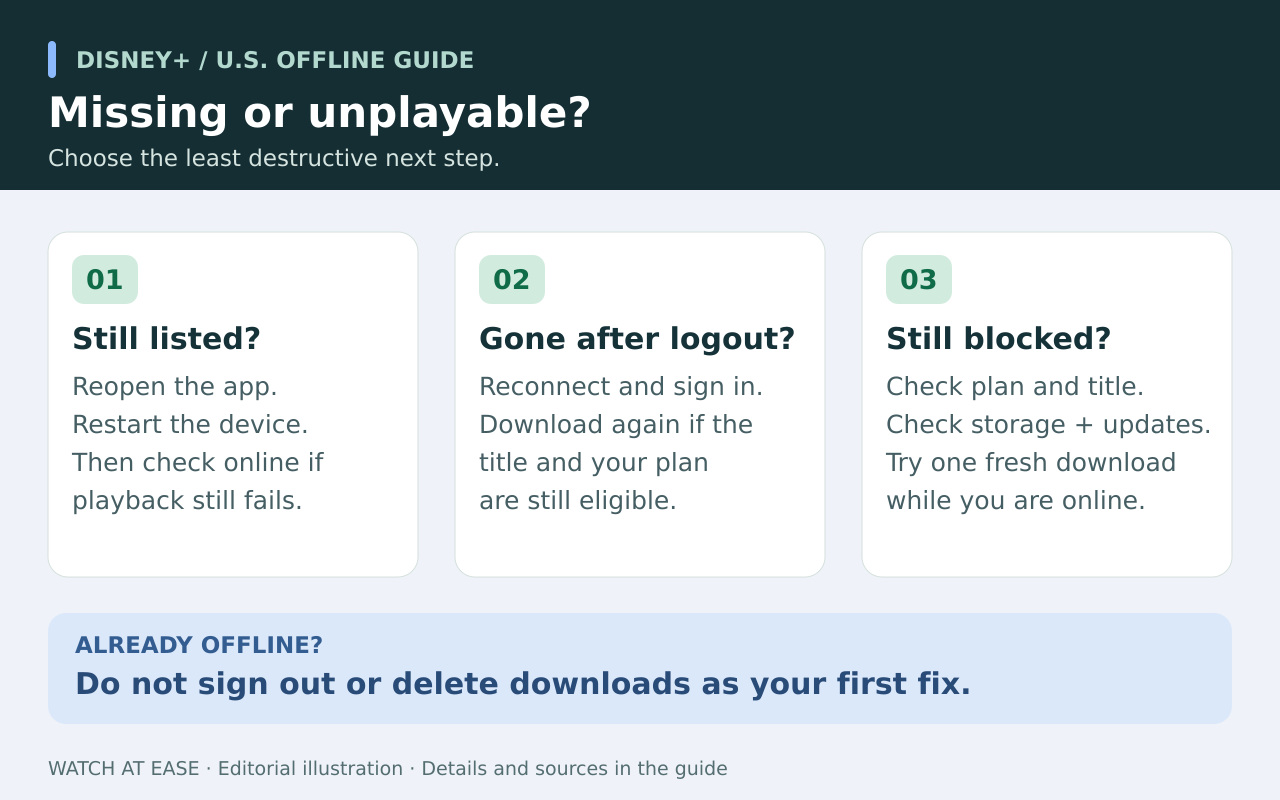
If the downloads disappeared
After a logout, the saved videos are gone from that device. Sign in online and download the still-available titles again. If you are already offline, repeated sign-ins cannot restore deleted files without a connection.
If the device missed its 30-day internet check, reconnect and inspect Downloads; download missing items again. Also check whether the title left the catalog or your subscription ended or changed to a plan without downloads. Reconnecting cannot override those access restrictions.
If a saved title is visible but will not play
First confirm this is the device used for downloading. Close and reopen Disney+, then restart the device. Avoid signing out as an offline first step: that would delete the other saved videos too.
Once online, check storage and app updates. If the title remains available, delete and download that one item again, then repeat the offline playback check. If it still fails, contact Disney+ support with the title, device, app version and exact error; do not assume every failure means the subscription needs upgrading.
What the 30-day rule does—and does not—promise
Treat 30 days as a reconnection deadline, not a guaranteed viewing window for every file. Disney says content can expire from its library earlier. Keep the device online periodically and confirm that the subscription still includes downloads.
Before a long trip, keep a small set of completed titles you have checked on the actual device. A successful test confirms that playback worked at that moment; it cannot preserve rights after a title expires or restore a file removed by signing out.