Technology · PRACTICAL GUIDE
Turn digiKam's saved selection list into CSV without losing full paths
Preserve every saved display URL and repeated filename in a spreadsheet snapshot, without copying photos or claiming the export succeeded.
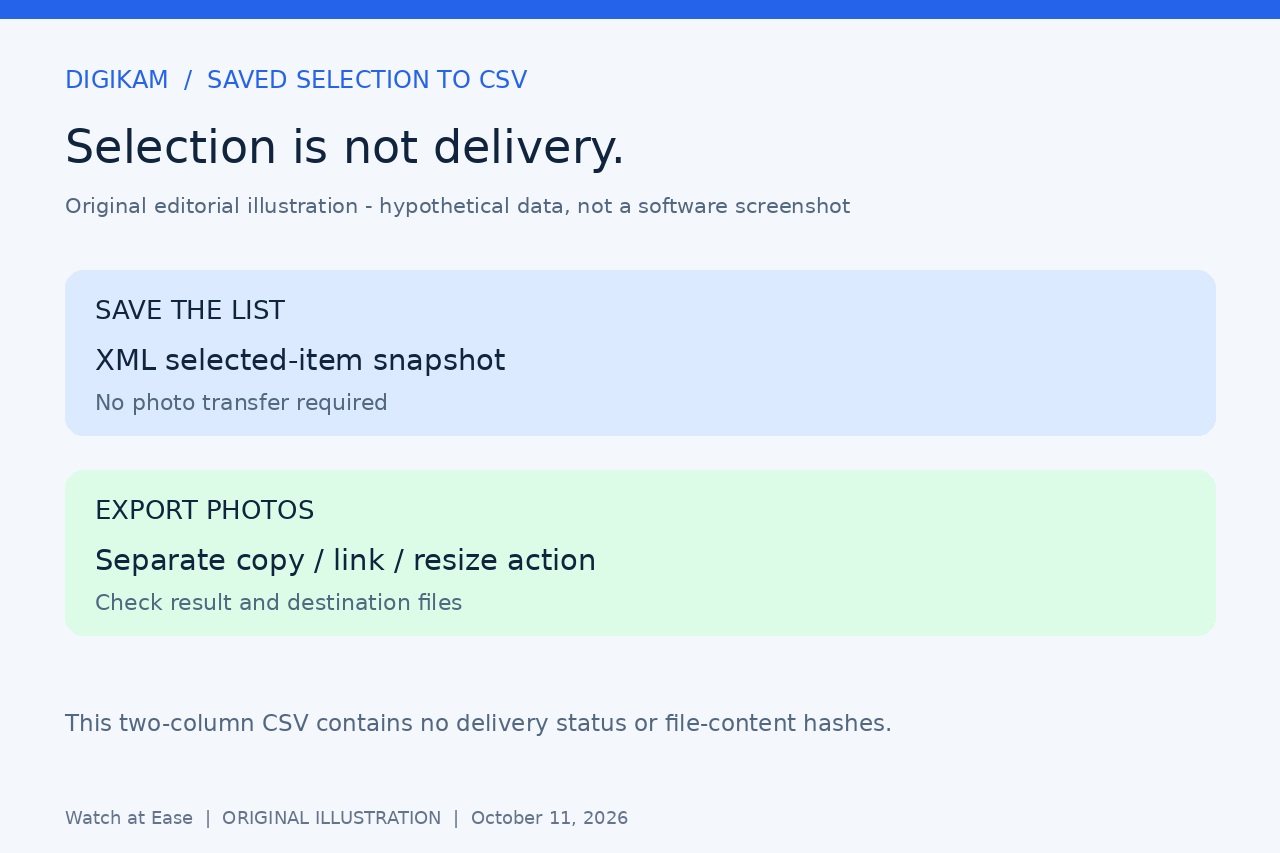
If you need a spreadsheet of the photos you selected in digiKam, a folder listing is a different answer: it can include unselected files and lose the selection you just made. digiKam's export-tool Save the list control gives you an XML selection snapshot instead.
The offline conversion below keeps the complete saved display URLs and their order in two CSV columns. It does not copy photographs, query the database, preserve all photo metadata or prove that a subsequent photo export completed successfully.
Save the tool's list, not the photo export
First select the intended photos, then open Export > Export to local storage. The current manual says the dialog initially includes the selected icon-view items. Inspect its actual list and count: filters, grouped items, added items or a stale selection can make that different from what you expected.
If your dialog exposes Save the list beneath the file list, save to a new local file called selection.xml. The original user discussion documents this control, and the complete current save function writes an Images root with Image entries containing url attributes. If your build lacks the control or produces a different format, stop rather than treating any XML as the same list. We have not run the current digiKam interface.
For a list-only task, close the dialog without starting its photo-transfer action. Local export can copy, link, resize or change exported metadata; those operations are separate. Keep the original XML and record your digiKam version, selection purpose, time and list count elsewhere. No original image or database needs editing for the offline conversion.
Convert your own UTF-8 XML copy
Use only a saved list you created yourself, not XML supplied by someone else. In a Linux Bash terminal with Python 3 installed, enter the folder containing selection.xml. Copy this command as one line with straight quotes and intact backslashes. Choose a new CSV name; existing output is refused.
python3 -c "exec('import csv\\nimport pathlib\\nimport sys\\nimport xml.etree.ElementTree as ET\\n\\nraw = pathlib.Path(sys.argv[1]).read_text(encoding=\"utf-8-sig\")\\nif \"<!DOCTYPE\" in raw.upper():\\n raise ValueError(\"Use only your own saved list without a DOCTYPE\")\\nroot = ET.fromstring(raw)\\nitems = root.findall(\"Image\")\\nif root.tag != \"Images\" or not items or len(list(root.iter(\"Image\"))) != len(items):\\n raise ValueError(\"Expected Images with direct Image entries, not nested images\")\\nurls = [item.get(\"url\") for item in items]\\nif any(not isinstance(url, str) or not url for url in urls):\\n raise ValueError(\"Every Image must have a nonempty url\")\\nwith open(sys.argv[2], \"x\", encoding=\"utf-8-sig\", newline=\"\") as destination:\\n writer = csv.writer(destination)\\n writer.writerow([\"ordinal\", \"url_display\"])\\n writer.writerows(enumerate(urls, 1))\\nwith open(sys.argv[2], encoding=\"utf-8-sig\", newline=\"\") as output:\\n parsed = list(csv.reader(output))\\nif parsed != [[\"ordinal\", \"url_display\"]] + [[str(i), url] for i, url in enumerate(urls, 1)]:\\n raise ValueError(\"Output did not round-trip: discard it and use a new output name\")\\nprint(len(urls), \"selection records exported and read back; not an export receipt\")\\n')" "selection.xml" "selection.csv"
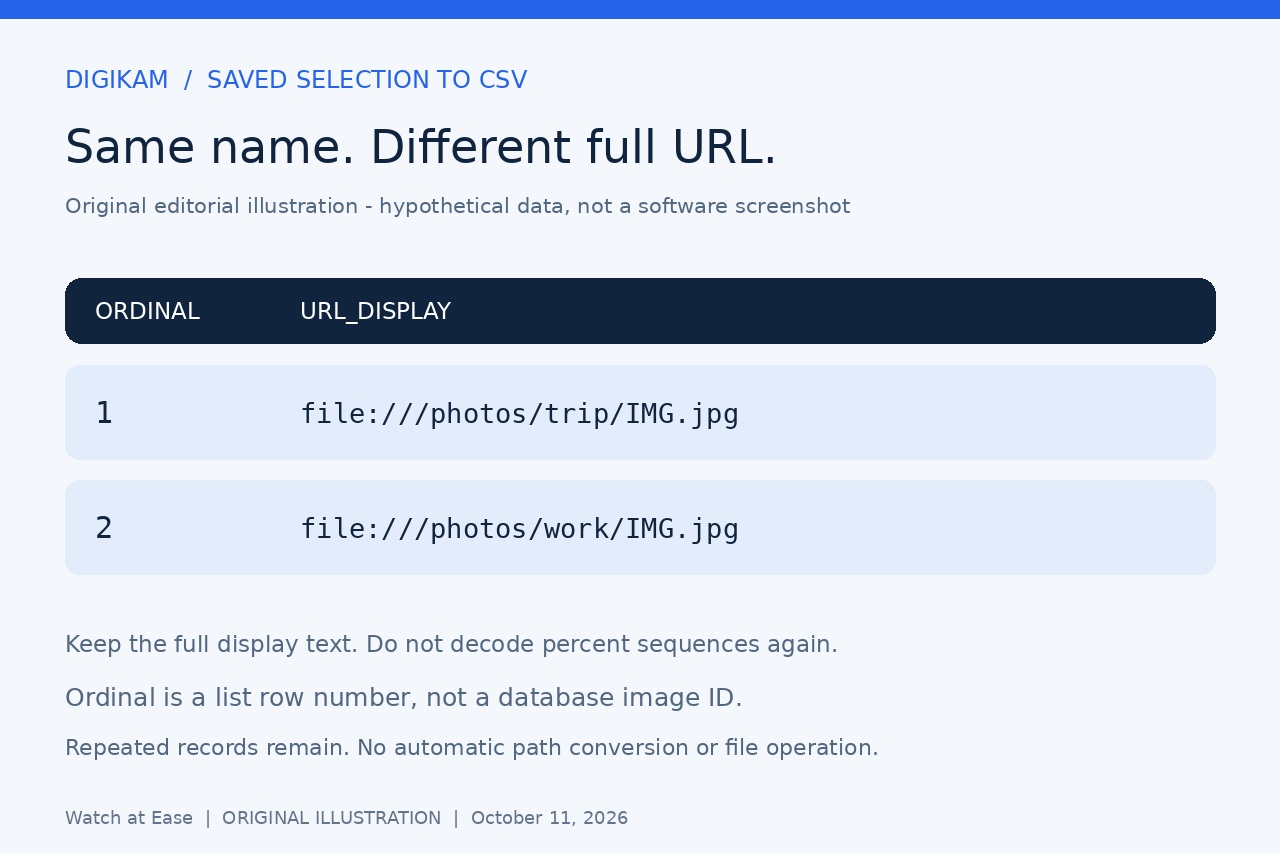
The two columns are ordinal and url_display. Ordinal starts at 1 and follows XML entry order; it is a snapshot row identifier, not digiKam's database image ID. The converter validates the Images root, direct Image entries and each nonempty url before creating output. Nested Image entries or a DOCTYPE are rejected. Optional plugin settings and per-image extras are deliberately not exported, so keep the XML.
Keep URLs literal and check the rows
digiKam writes QUrl's display representation. XML parsing turns markup escapes such as & back into the attribute's text once; the converter then preserves that text without splitting the path, decoding percent sequences, trimming or deduplicating it. A display URL is not automatically a native local path or a shell command. Do not paste these cells into commands that copy, rename or delete files.
Repeated basenames in different folders remain separate full URLs. Even repeated complete URLs remain separate records. The command reads the CSV back and checks every ordinal and URL against the parsed input before printing success. Compare that count with the saved tool list and inspect several complete URLs, including equal filenames in different folders. This verifies conversion of the saved records; it cannot detect photos omitted from the original selection.
In LibreOffice Calc choose UTF-8, comma separator and straight double quotes as the text delimiter. Disable Merge delimiters, Trim spaces and Evaluate formulae; set both columns to Text. If the import dialog is hidden, enable Edit filter settings while opening. Work on a separate sorted or filtered copy and retain an unchanged CSV master.
Handle failure and use the right kind of evidence
Malformed XML, the wrong root, an empty list, missing URLs or nested Image entries stop before output creation. A destination-exists error calls for a new filename. If writing or readback fails, discard any partial CSV and rerun to a fresh name; a file merely appearing on disk is not success. Other XML, such as an HTML gallery description or database export, is outside this recipe.
We executed 13 synthetic cases with this exact Linux Bash command, covering Unicode, commas and quotes, duplicate names and URLs, literal percent sequences, Windows/network URL text, malformed inputs and intentional omission of plugin data. All five valid two-record cases also refused a second write without changing the output. We did not run digiKam, Qt or Calc, or execute the command on Windows or macOS.
A saved list records selected items at that moment. To establish what was actually delivered, separately check the export's result and intended destination files; this CSV supplies neither success status nor hashes. For a reusable gallery selection, existing tags and labels remain useful alternatives. For full captions, ratings or other metadata, use an appropriate metadata/database workflow instead of assuming this two-column snapshot contains them.