Tech · PRACTICAL GUIDE
Apple TV Purchased Movies Work but Computers Says No Libraries? Check Home Sharing Discovery
Purchased or cloud movies can still play even when Apple TV cannot discover a local Home Sharing library. Check the account, computer, media app, local network and Bonjour path before you reset anything.
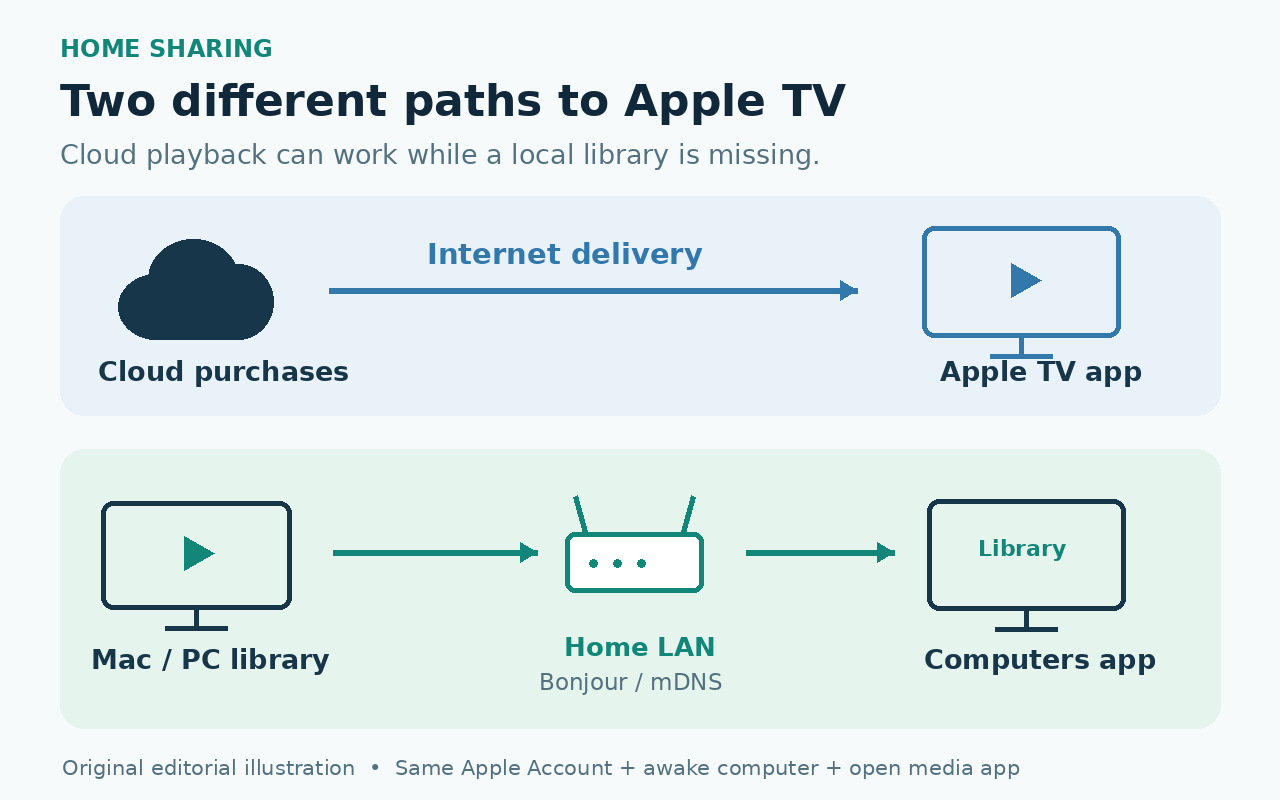
Purchased or cloud movies working does not prove that Home Sharing is working. Those titles can arrive through Apple’s online services, while the Computers app must find a Mac or Windows library on the local network. If Computers says “No Libraries Available,” preserve the library and check Home Sharing, the host computer and local Bonjour discovery before resetting Apple TV, rebuilding the library or changing files.
First identify which failure you have
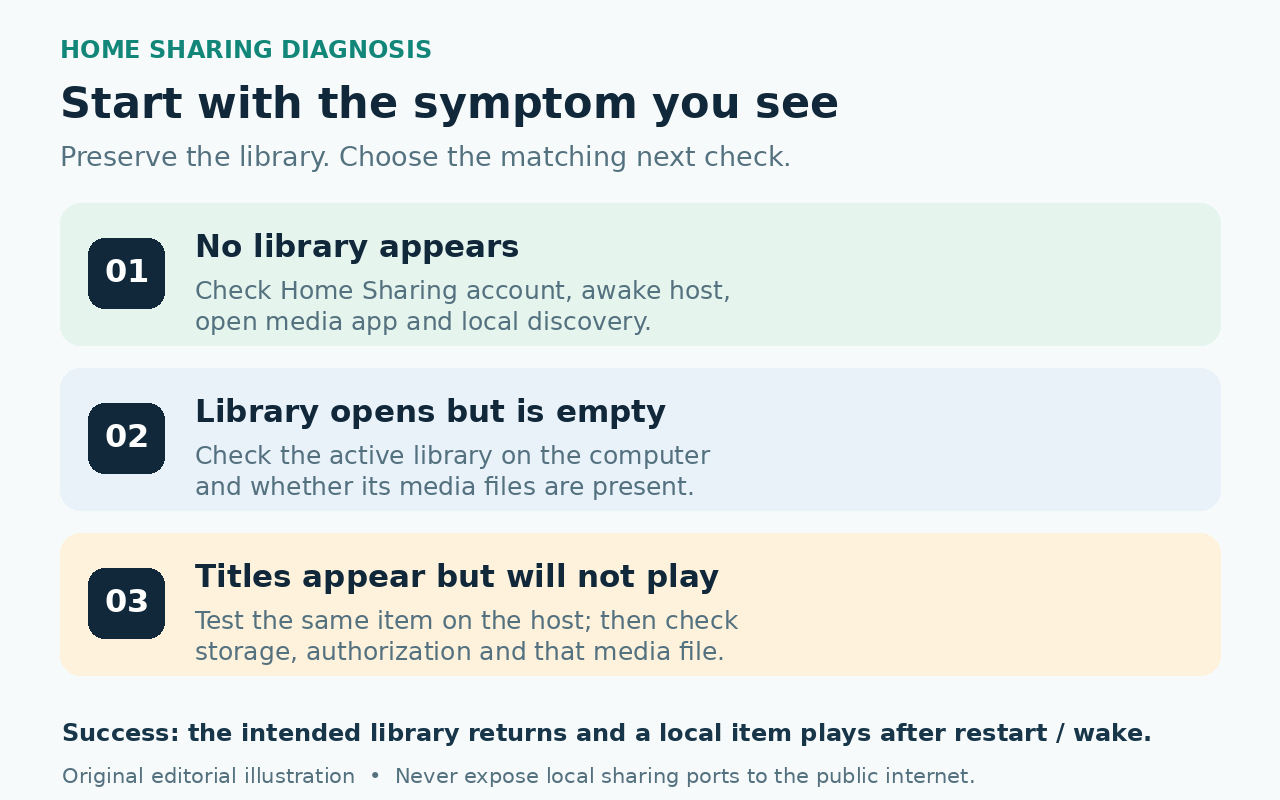
Open Computers on Apple TV and note the exact stopping point. “No Libraries Available” means Apple TV has not discovered a Home Sharing library. A named library that opens but looks empty is a different problem: Apple TV found the computer, but the expected media may not be in the active library. A library whose titles appear but will not play is a third branch involving the host, mounted storage, authorization or the individual media file. Do not treat all three symptoms as one sync failure.
If purchased or cloud titles play in the Apple TV app, the internet connection and at least one Apple Account path are working. That does not test local Home Sharing. Apple documents Home Sharing as access to a computer library on the same home network, with Computers as the Apple TV endpoint. Keep the only good copy of the library and media files unchanged while you test.
Recheck Home Sharing on both ends
On current macOS, open System Settings > General > Sharing, turn on Media Sharing, open its information panel and select Home Sharing. Sign in with the intended Apple Account. On older supported Mac versions, the path may be in System Preferences > Sharing. On Windows with iTunes, use File > Home Sharing > Turn On Home Sharing. Apple’s current guide still describes iTunes for this Windows path; do not substitute an unrelated sharing toggle.
On Apple TV, go to Settings > Users and Accounts (or Profiles and Accounts in current guide wording) > Home Sharing, turn it on and use the same Apple Account. Return to the Home Screen, open Computers and look for the library. Confirm that the computer is on and awake and that Music, TV or iTunes is open. If the library appears, open one representative local item before changing anything else.
After replacing a computer, verify authorization and the active library
A new computer is a new Home Sharing host. Sharing on the old machine does not automatically publish the new machine’s local library. On the new computer, sign in, authorize it for purchases as Apple directs, enable Home Sharing and open the media app that owns the library. If media lives on an external drive, verify that the drive is mounted and the item opens on the computer.
Do not assume that signing in to the Apple TV app recreates a local library. Cloud purchases may appear from Apple’s service even when home videos or other local files have not been added to the active library on the new computer. If Computers finds the new library but it is empty, inspect which library the host app opened and whether expected files are present. Do not erase the old computer or drive.
If Computers still says no libraries, test local discovery
Put Apple TV and the computer on the same ordinary home LAN for a controlled test. “Same Wi-Fi name” is useful but not conclusive: guest networks, client isolation, separate VLANs, some extenders and some mesh configurations can allow internet access while filtering local multicast discovery. Apple lists UDP 5353 mDNS for Bonjour and Home Sharing, and RFC 6762 defines ordinary mDNS as link-local. Apple also notes that multicast usually is not routed across subnets.
Use the least destructive comparison. Temporarily connect both devices through the main router or the same access point, or compare their local IP subnet if you know how. Do not factory-reset the router first. If the library appears only on the simpler path, keep the library unchanged and inspect the router, access point or extender settings for guest/client isolation and Bonjour/mDNS or multicast handling. Use the network vendor’s documentation because labels and safe settings vary.
Do not use AirPlay as the Home Sharing test
AirPlay can discover and connect in ways that Home Sharing does not. Apple documents Bonjour, Bluetooth advertisement and peer-to-peer discovery paths for AirPlay. Successful AirPlay can therefore coexist with a Computers app that cannot find the local library. The useful test is whether Computers sees the library on the same local discovery path, not whether a phone can cast video.
Check the firewall and Windows Bonjour process safely
A local firewall can block discovery or library traffic even when web browsing works. On macOS, use application firewall controls to allow relevant Apple media and sharing services on the private network. On Windows, confirm that iTunes and Apple’s Bonjour/mDNSResponder component are installed and permitted on the private network. Apple says mDNSResponder lets iTunes discover local services including music sharing and Apple TV.
Do not permanently turn off the firewall, and do not forward Home Sharing, mDNS or iTunes sharing ports to the public internet. Apple’s port reference is a diagnostic aid, not an instruction to expose a computer. If a brief controlled firewall test is allowed by local policy and changes the result, restore the firewall immediately and create the narrow local/private-network allowance documented for the OS or security product.
If the library appears but media will not play
Once a named library appears, discovery has succeeded. Keep the host awake, leave the relevant app open, mount any external drive and play the same item locally on the computer. If one item fails but others work, investigate that file or its authorization instead of resetting Home Sharing. If every item fails, restart only the media app and Apple TV first, then recheck the host and local path.
For purchased files stored locally, computer authorization may matter. For personal files, confirm that the active library points to the real file location. Supported formats and rights vary, so do not promise every local file will play merely because a thumbnail appears.
Completion and failure branches
The repair is complete when Computers shows the intended library after a restart and at least one representative local item opens while the host is awake. Repeat once after the computer wakes from sleep. Record the Apple Account, library and network path that worked.
If the library never appears on a simple same-router path after Home Sharing is enabled with the same account and the host app is open, preserve the library and collect the Apple TV model/tvOS version, computer OS and media-app version, local subnet, firewall/security product and router/access-point model. Contact Apple Support for account/host issues and the network vendor for multicast or client-isolation behavior. If the library appears but content fails, report that branch separately; “no library,” “empty library” and “cannot play” need different evidence.
Important boundaries
Current paths apply to Apple TV 4K/tvOS 27 and current Apple pages reviewed 2026-10-03; menu wording varies.
Managed networks may intentionally block peer discovery; do not bypass policy.
AirPlay success is not proof of Home Sharing discovery.
No permanent security disablement, internet port exposure or library erasure is advised.
No hands-on testing is claimed.