Technology · PRACTICAL GUIDE
Health data missing on a new iPhone? Prove the recovery source before you restore
Check where the oldest readable record still exists, preserve that source, then choose iCloud sync or an encrypted backup without erasing your last copy.
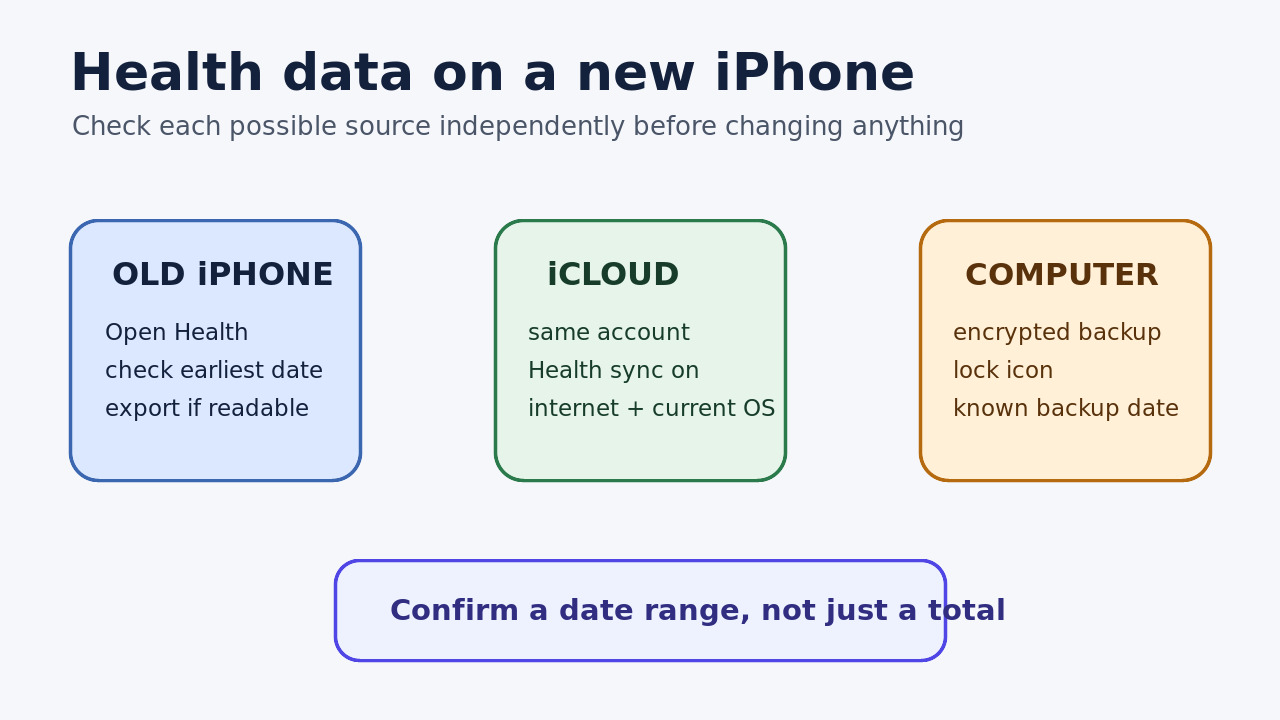
A new iPhone may show only recent Health entries even though an old iPhone, iPad or computer backup still holds a longer history. Do not start by erasing the new phone or toggling every sync control. First prove which date range survives in each possible source, preserve the last readable copy, and only then choose a recovery path.
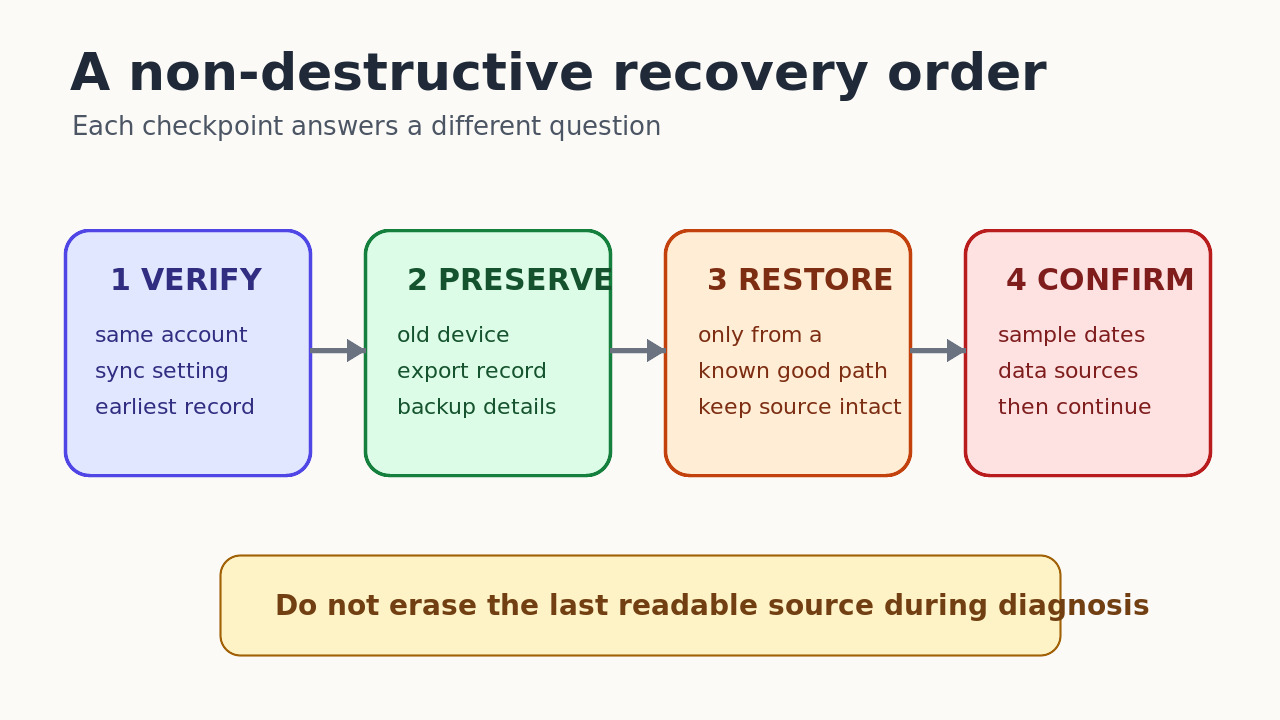
1. Prove what is missing and where it still exists
On the new iPhone, open two or three Health categories that matter to you and record the earliest visible date, latest visible date and the listed Data Sources & Access. Check the same categories on any old iPhone or iPad that still shows history. A total storage number or a recent Activity ring is not enough; use a dated sample that you can recognize. Keep the old device powered, locked and unchanged while you compare.
Confirm that both iPhones use the same Apple Account. On each device, check Settings, your name, iCloud, Show All, Health. Apple says Health syncing also requires an internet connection and current operating-system versions. If another device still has the missing range, do not delete Health data, sign out, reset it or choose Disable and Delete during diagnosis: Apple warns that deleting synced Health data on one device removes it from all devices on that account.
2. Preserve the last readable source before recovery
If the old iPhone still displays the longer history, use Health, Summary, your picture or initials, then Export All Health Data. Save the resulting XML archive somewhere outside that phone and verify that the file can be copied. Apple describes this export as a sharing format; it does not promise that Health can import it as a complete round-trip restore. Treat it as an evidence copy, not as permission to erase the old device.
Also inventory any computer backups before making a new one. In Finder, Apple Devices or iTunes, open Manage Backups and look for the lock icon, device name, date and time. Apple states that Health data is included in an encrypted computer backup but not in an unencrypted one. Do not overwrite a known useful backup merely to create a newer empty-state backup; first preserve the existing backup according to your computer backup practice.
3. Choose one recovery path from the evidence
Use the iCloud path when a readable device has the missing range and Health sync is enabled for the same Apple Account. Keep that source online and unchanged, keep the new iPhone connected, and check the same dated samples again after synchronization progresses. Do not use repeated erase-and-restore cycles as a sync test. If the date boundary does not move, preserve the evidence and contact Apple Support rather than deleting the only complete source.
Use the computer-backup path only when you have identified a known-good encrypted backup from before the loss. A backup restore replaces the device setup; it is not a Health-only import. Preserve any data created only on the new phone first and follow Apple’s device-restore instructions. If the new iPhone is already configured, Apple says it must be erased before setup-time restore, so verify the backup date, lock icon and current-device safeguards before taking that irreversible step.
4. Confirm the recovered range and know the hard stop
After a sync or restore, reopen the same categories and compare the earliest date, one middle sample and the latest date. Review Data Sources & Access so you know whether the records came from the old iPhone, Apple Watch or a third-party app. Confirm the records themselves before trading in or erasing the old phone. Fitness awards or summaries can update on a different schedule, so do not use one badge as proof that the underlying Health history is complete.
If no readable device has the missing history, Health was not synced to the same iCloud account, and the only computer backup is unencrypted, Apple’s documentation gives no Health-data source to restore. An XML export can preserve readable records but is not documented as a full Health import. Provider records may be downloaded again by signing back into the provider account, and a contributing app may have its own export, but neither recreates every missing record automatically. Stop before destructive resets and ask Apple Support or the original data provider about that exact source.