Tech · PRACTICAL GUIDE
“Always Play on iPhone” Missing for Your Sleep Alarm? Check These Four Conditions
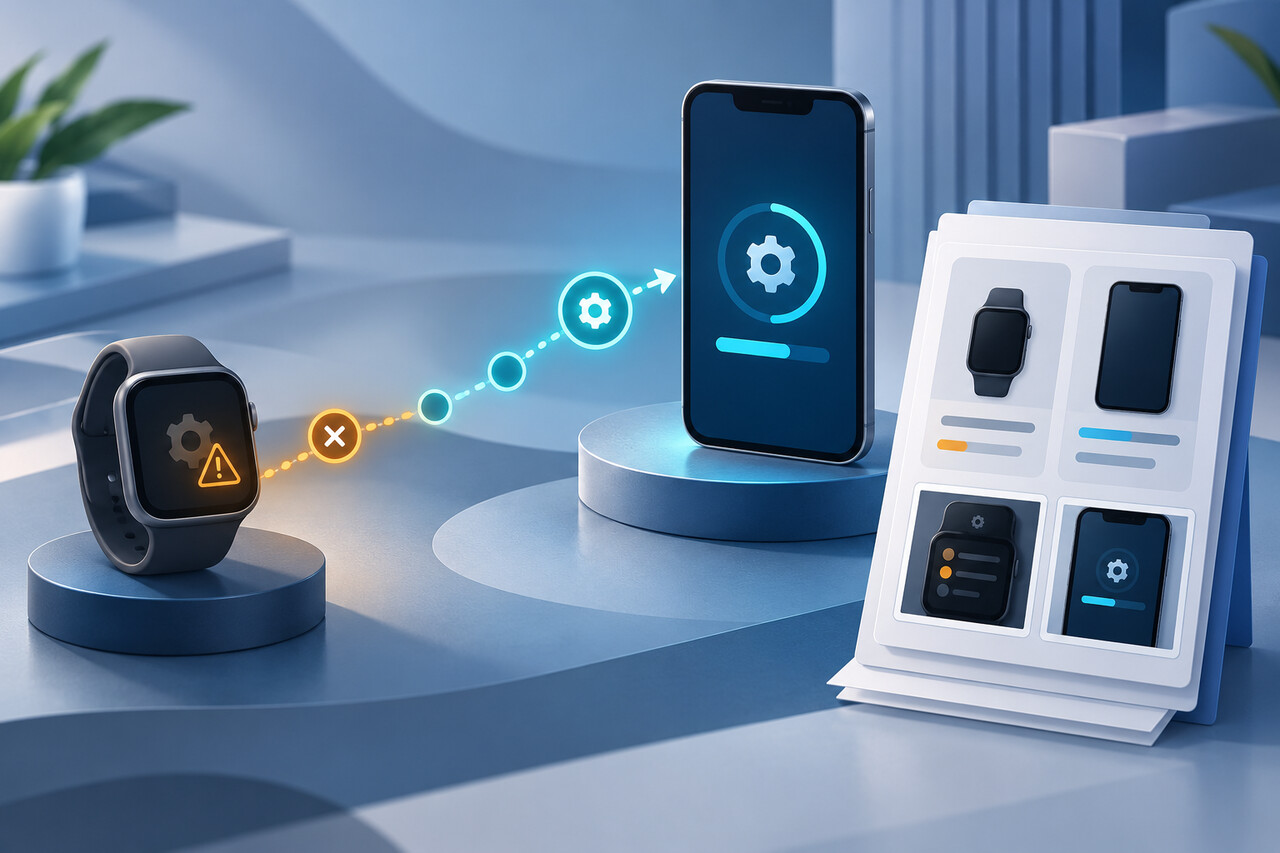
The switch belongs to a recurring Sleep Schedule—not a regular alarm. Check the alarm type, schedule scope and both device versions before you reset or unpair anything.
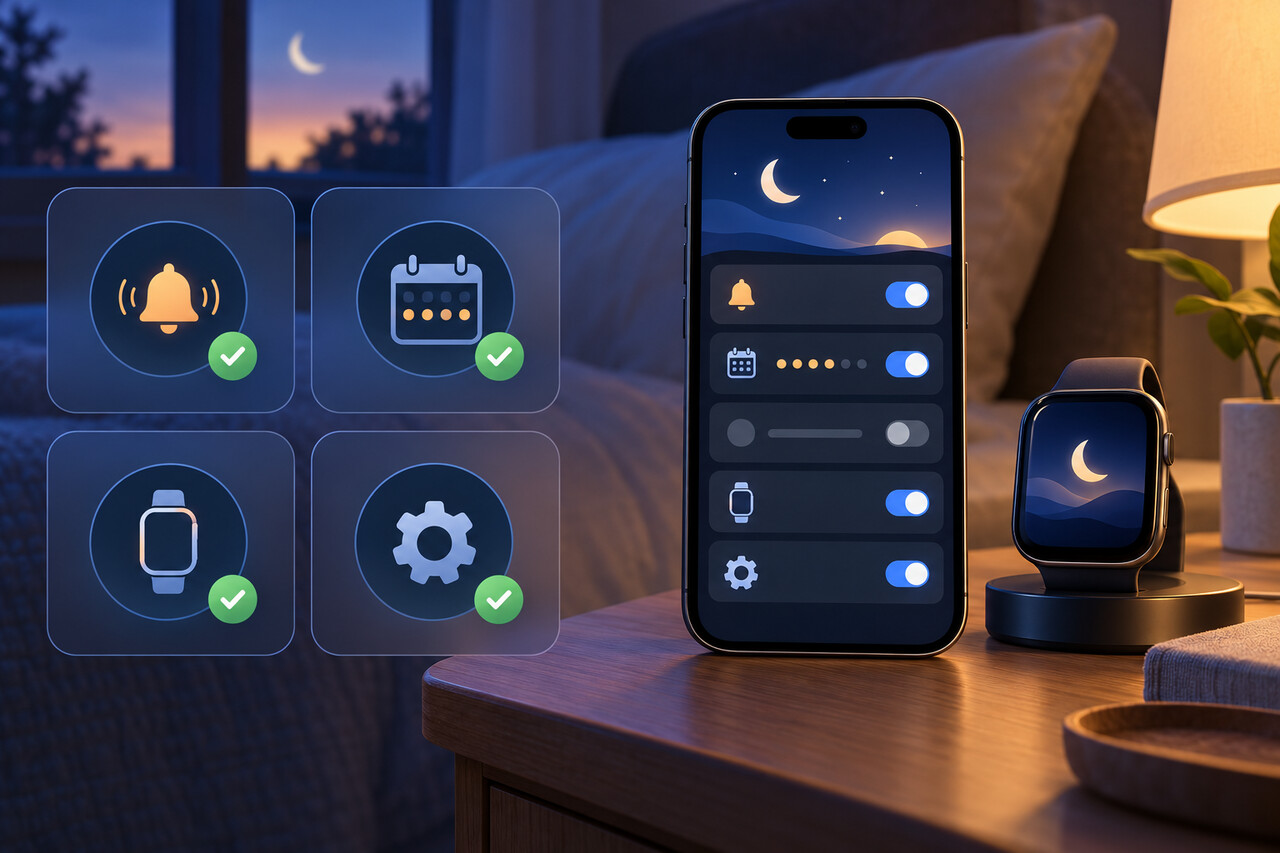
If “Always Play on iPhone” is missing, first make sure you are editing a recurring Sleep Schedule alarm, not a standard Clock alarm or only the next wake-up. Then confirm an Apple Watch is paired and update both the iPhone and Watch to the latest software each device supports. Updating only the phone is not enough in repeated real-world cases.
Do not erase settings, delete your Sleep Schedule, or unpair the Watch just to force the switch to appear. If all four conditions below are satisfied and the option is still absent, preserve the exact device and schedule evidence and contact Apple.
1. Open the correct alarm
On iPhone, open **Clock > Alarms** and choose **Change** beside **Sleep | Wake Up**. A normal one-off alarm under Other is the wrong object: independent reporting and Apple’s own schedule documentation place this feature inside the Sleep Schedule workflow.
You can also use **Health > Browse > Sleep > Sleep > Full Schedule & Options**, then edit the relevant recurring schedule. On Apple Watch, open **Sleep** and edit the schedule’s alarm options.
2. Confirm that a recurring schedule actually exists
A Sleep Focus by itself is not the same as a recurring Sleep Schedule. Apple’s current Clock guide says wake-up changes are available after a sleep schedule has been set up in Health.
In Health, confirm that the correct days are active, the alarm is on, and you are editing that schedule—not a plain Clock alarm. If no recurring schedule exists, create one before looking for the switch.
3. Apply the change to the schedule, not only tonight
Clock can offer **Change Next Alarm Only** and **Change This Schedule**. Apple says a next-only edit expires after the next wake-up, while the recurring alarm resumes afterward.
If the option appears only while editing the next alarm, repeat the change in **Health > Sleep > Full Schedule & Options** or choose **Change This Schedule**. That prevents a successful one-night test from being mistaken for a permanent fix.
4. Check both devices, not just the iPhone
The switch was introduced with the 26.4 software generation for this paired iPhone-and-Watch use case. Update the iPhone and Apple Watch to the latest versions that each device actually supports, then restart both and reopen the recurring schedule.
Do not infer compatibility from the iPhone version alone. Community reports include people who updated the phone but still had an older Watch version. Apple’s public pages do not provide a complete model-by-model matrix for a missing switch, so do not promise that every older Watch can gain it.
Test it while you are awake
After the switch appears, turn it on for the recurring schedule and set a supervised test wake time a few minutes ahead. Wear and unlock the Watch as you normally do overnight, keep the iPhone where you can hear it, and verify that both devices alert.
Repeat the test after saving through the full schedule. Do not rely on the first unattended morning: independent coverage notes that interactions with mute, Focus and audio routing were not fully documented when the feature launched.
If the switch is still missing, stop resetting
If you have the correct Sleep/Wake Up alarm, an active recurring schedule, a paired Watch, and the latest software each device supports, stop before deleting schedules, resetting settings or unpairing devices.
Capture these items for Apple Support: iPhone model and iOS version; Watch model and watchOS version; screenshots of the Clock Sleep/Wake Up edit screen and Health Full Schedule screen; active schedule days; whether the alarm is next-only or recurring; whether the Watch is worn, unlocked and selected for Sleep tracking; and the result of a supervised test.
This evidence distinguishes a setup error from an unsupported Watch update path or an unresolved software defect without destroying the configuration Apple needs to inspect.
When you are done
The setup is complete only when the switch is visible on the recurring schedule, remains enabled after closing and reopening the editor, and a supervised test plays on both iPhone and Apple Watch.
If the switch remains absent, a complete support package and an unchanged schedule is a valid endpoint. This guide does not claim that a reset will add the feature or that every older Watch supports it.